

A year wheel in PowerPoint
- Redrawn by hand every time the plan changes
- Shows what you meant to do, not what got done
- Says nothing about who is responsible
Digital year wheel
Add what recurs through the year and Kalends builds a beautiful year wheel from it. When something moves, gets done or runs late, it shows at once, and nobody has to redraw the wheel in PowerPoint or Excel.
Not another year-wheel template
A year wheel in PowerPoint or Excel is out of date the day the plan changes. In Kalends every point is a real commitment, so the picture follows the work.
How to read the wheel
Calendar year, the next 12 months or a non-calendar fiscal year. Periods become arcs and public holidays are marked on the rim.
Shows where in the year you are. Fade what has passed or compare with last year.
Scheduled, due, overdue, done or skipped. The colour changes as the work gets done.
Bring out what matters in and around the wheel. One click opens the commitment.
Shows how each month went, so you can see where the year fell behind.
Split the wheel by department, area or directive, with automatic or custom colours.
Three wheels, three perspectives
Filter by department, area, directive, person or status, and choose the year type, rings, colours and theme. Save each wheel as its own view or as a widget on the dashboard.
A dark theme for the big screen, the next 12 months and periods as arcs.
A non-calendar fiscal year that starts in May. Open a month without leaving the wheel.
Status, public holidays and the summer closure for the whole year, with what has passed faded.
Present and share
The wheel you show is always the current one. Nobody has to prepare a new version before the meeting.
Full screen and presentation mode, straight from Kalends.
When the wheel belongs in a report or a board pack.
A live-updating view on the intranet or another web page.
The whole organisation can follow the wheel without the invoice growing.
What sits behind the year wheel
Every point in the wheel is a real commitment with a purpose, cadence, owner, stand-in, reminders, status and evidence. Together they become one shared picture of the organisation's recurring work.
Open a point to see who owns it, why it exists and what must be signed off.
The same commitments appear in the list, calendar and timeline when it is time to do the work.
History stays, so you can see what got done and plan next year better.
Next occurrence 7 Oct 2026
The same information, more views
Change perspective without copying anything into yet another document.
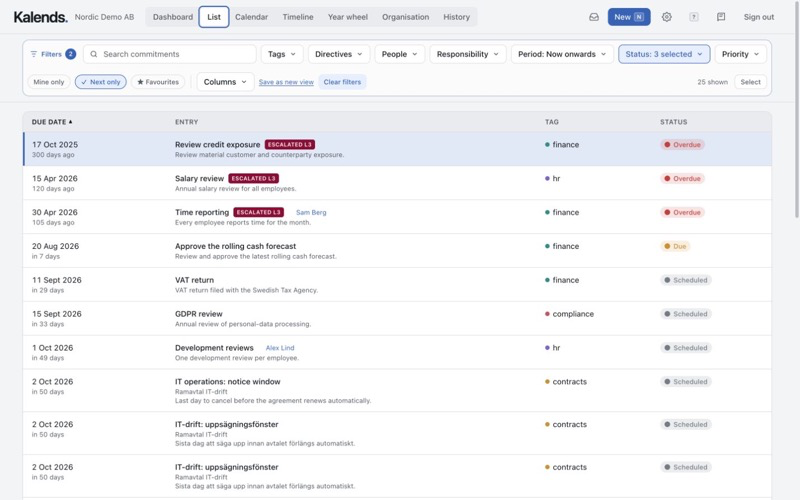
Everything to be done, filtered by area, person and status.
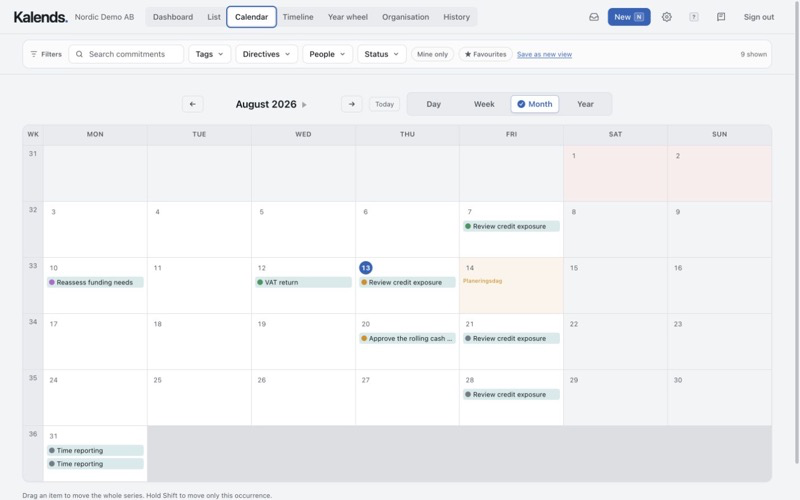
The month's work day by day, with public holidays marked.
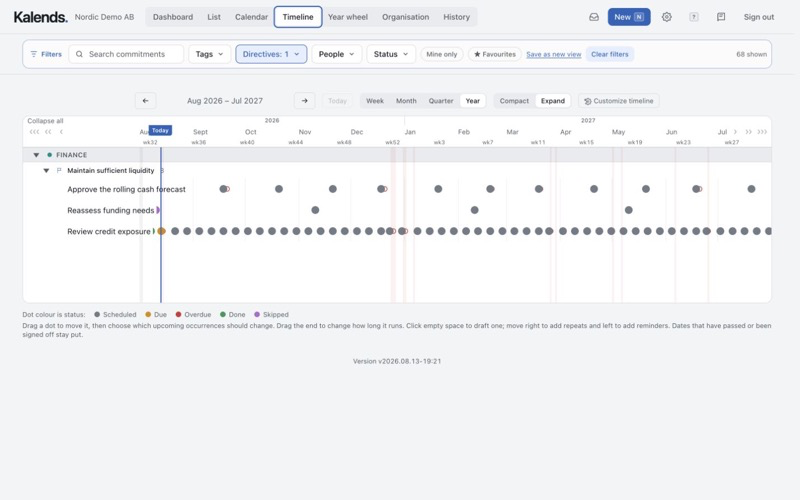
See the rhythm and the gaps across the year.
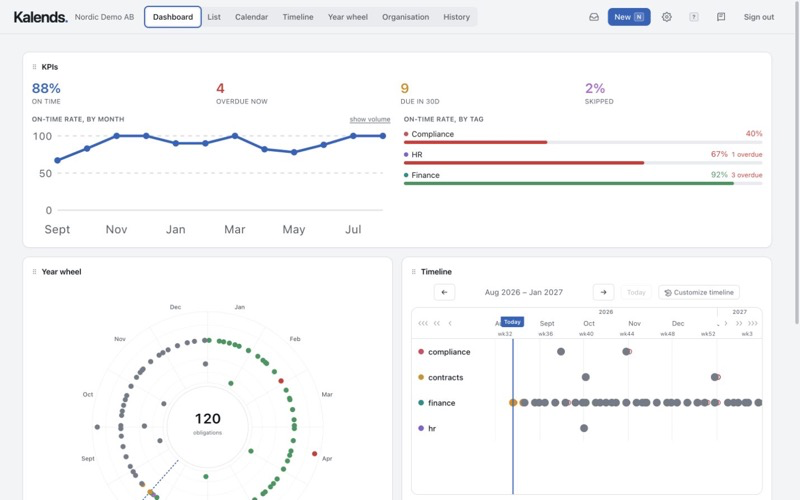
KPIs, the year wheel and the timeline on one page.
Common questions
Can't find the answer?
Yes. Filter by department, area, directive, person or status and save the combination as its own view.
Yes. The wheel is built from the commitments' dates, cadence and status. Move or update the work once and the wheel follows.
Yes. Use full screen and presentation mode, export an image or PowerPoint, or share a link to a live-updating view.
Yes. Watch-only members are free and unlimited on every plan. They see what a member sees but cannot change anything.
From $9 per seat per month, billed annually, with a minimum of three seats. Watch-only members are free. Try it free for 30 days, no card needed.
No. Start with one area and what should appear in the year wheel. Add more as the value becomes clear.
Get started
Start from a template or add what recurs in one area, and the wheel takes shape as you work.